
Live camera
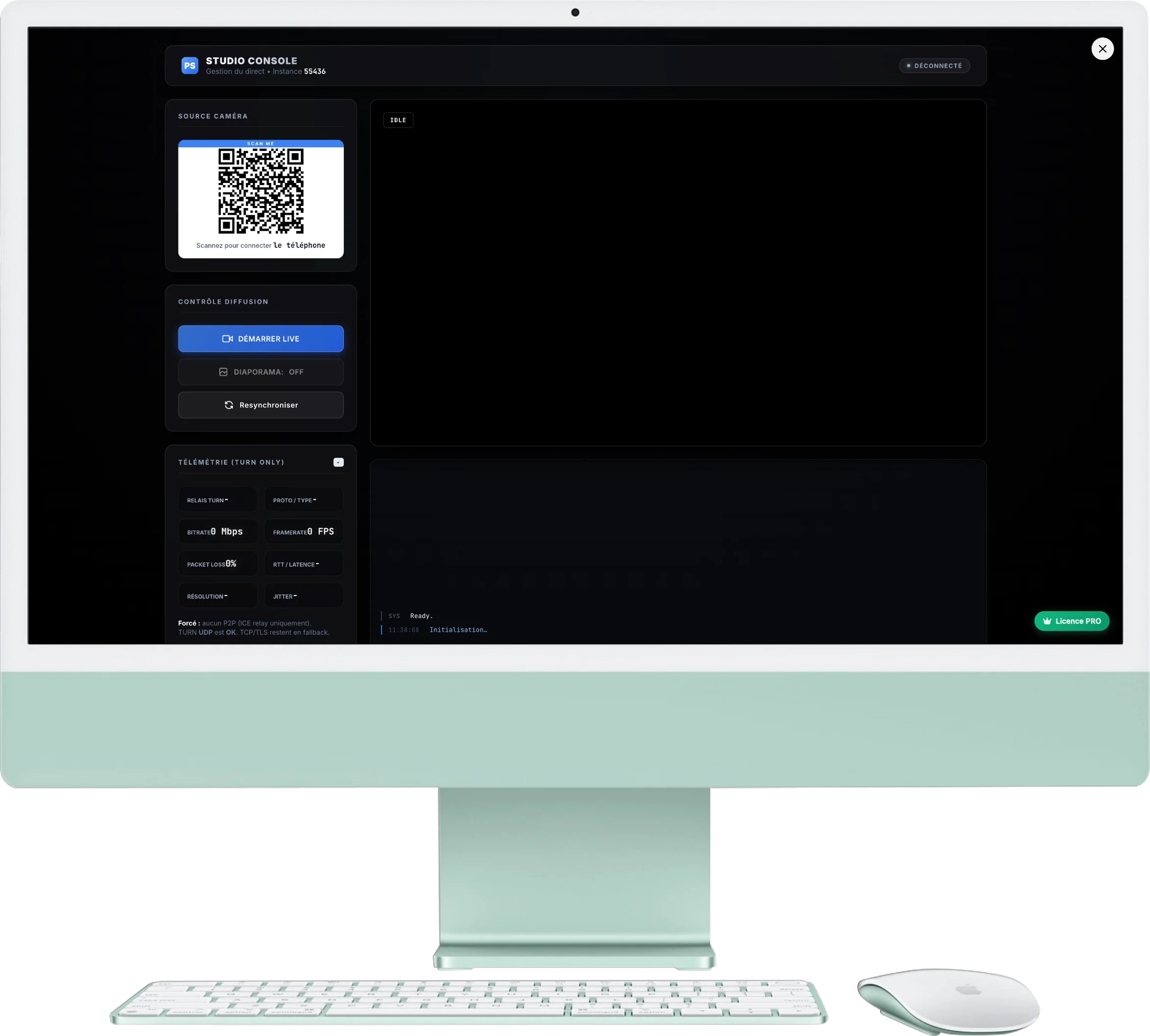
The live camera transforms a simple smartphone into a mobile camera to display live video on your giant screen, smoothly and securely.
1. Connect the camera
The first step is to link your smartphone to the Live Camera menu:
- Take the smartphone that will be used to film.
- Scan the QR Code displayed in the block at the top left of the console.
- A page will open on the phone and request access to the camera. Accept to start live.
2. How it works on the user side
Live video is based on two simple roles:
- Phone : he films the key scene or moment.
- Screen : it displays the live feed for the guests.
- Organizer menu: it allows you to start, stop or resynchronize the live broadcast.
3. Diffusion Control
Manage what is projected to guests from the control panel:
- Start live: This button launches the video display. The image appears in the central monitor.
- Slideshow ON/OFF: Allows you to instantly switch between “Live Camera” view and “Classic Photo Slideshow”. Very useful for filming a speech and then submitting the photos.
- Resync: in the event of a network outage, click here to restart the display and find a smooth image.
4. Monitor & live quality
Quickly monitor whether the live stream remains usable during the event:
- Central monitor: you see the image sent by the smartphone.
- Network quality: If the indicators turn red, the room connection is probably unstable.
- History: the lower area displays the latest actions useful for monitoring the live status.