
Access & route (home page)
The homepage is the entry point to your event. Depending on your settings, it offers
Join (guest mode) or Login / Register. Then, the user arrives in the space adapted to their role: guest or organizer.
1. Join vs Login/Register
- Guest mode enabled: the button Join appears. The guest can enter quickly, with or without account creation depending on your settings.
- Guest mode disabled: the screen suggests Login (existing account) and, if authorized, Sign up.
- Access with code / without code: depending on your access settings, the guest goes through verification (code/QR) or gains direct access.
2. The user journey
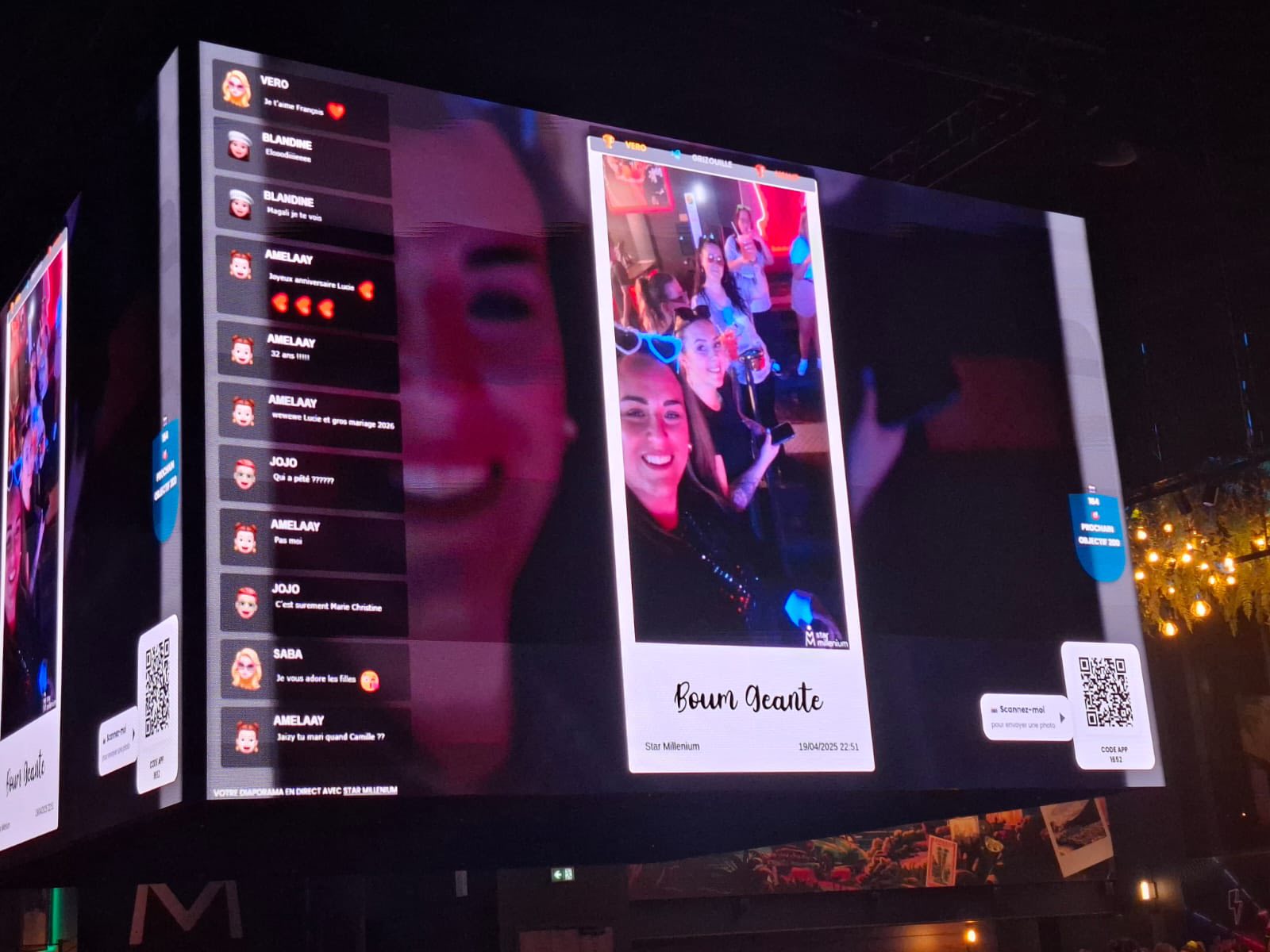
- Guests: They use the buttons and the QR Code to send photos/GIFs/videos, participate in games, view the gallery or write on the screen.
- Old path: if a guest arrives on an interface that no longer corresponds to your menus, check the setting of the guest route in your organizer space.
- Organizer: management is done from the menu Home admin, then the settings menus, moderation, giant screen, exports and animations.
- Slideshow: open it with the button Open Slideshow provided in your organizer space.
- Guest site: use the menu Guest site & albums for consultation during or after the event.
- Live camera: use the menu Live camera to connect a smartphone to the screen.
3. Why does the welcome “hang” on your computer?
The entry page is optimized for use smartphone. If a guest opens the link on PC (or in “desktop mode” on mobile), a block may appear with help to switch back to the mobile version.
4. The typical route (to remember)
- Organizer: Home admin → settings → slideshow → animations → moderation.
- Guest : QR Code → join/connect → photo/GIF capture → send → appearance on screen + gallery.