
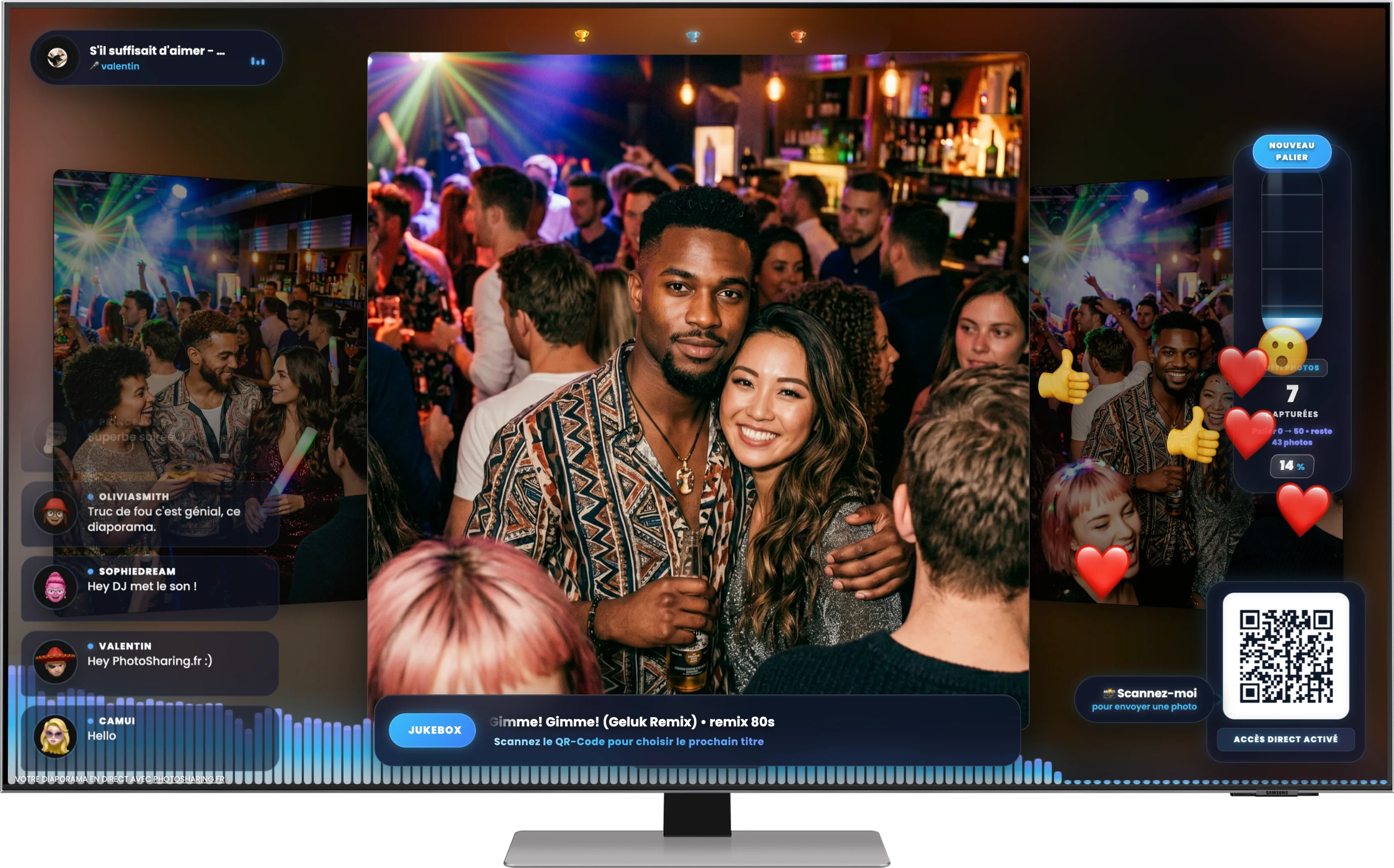
The Giant Screen (Live Slideshow)
The Slideshow is the heart of your animation! This is the screen (TV or video projector) that your guests are watching. It doesn't just display photos: it's a real interactive hub that centralizes games, music and discussions in real time.
0. Start slideshow (where to find it)
The slideshow opens in a dedicated tab, in full screen:
- From the organiser space: Home admin → button Open Slideshow.
- Public display: use the tab opened by this button for the projection.
- Tip: use a PC connected via HDMI to the TV/video projector, then switch the browser to full screen.
1. Viewing Photos and Videos
The center of the screen is dedicated to the memories shared by your guests:
- Photos & GIFs: Snapshots, selfies and GIFs sent from smartphones are automatically displayed in full screen with smooth transitions.
- Advertisements & Videos: If you have programmed advertising videos or clips via the "Video" module, the slideshow will be temporarily interrupted to broadcast them before resuming its cycle.
- Live Cam: You can overlay a live video feed in the background to broadcast the room or dance floor.
2. Message Wall (Live Chat)
On the left side of the screen, interactivity is in full swing:
- Chat bubbles: Text messages from your guests (along with their Memoji nickname and avatar) appear as elegant bubbles that move up the screen.
- Floating Emojis: Reactions (hearts, laughter, etc.) sent by guests flow fluidly from the bottom of the screen, creating a dynamic atmosphere without hindering the display of photos.
3. The Jukebox and Audio Visualiser
The bottom of the screen is dedicated to the musical ambiance of your event:
- Current title: A bar displays the name of the current music, with scrolling text if it is too long.
- Graph viewer: Animated light bars react in real time to the rhythm of the music being played.
- Next track: The system announces what music will play right after, prompting guests to scan the QR Code to make their own requests to the DJ.
4. Ranking & Collaborative Challenges
Add gamification to boost participation:
- The Top 3 (At the top): A podium displays in real time the pseudonyms of the 3 guests who generated the most points (via likes, games, etc.).
- Objective Bar (Right): A “Photo Challenge” motivates the assembly! A percentage progress gauge fills as guests send photos, until a level is unlocked (with a congratulatory animation on the screen).
5. Quick Access & Useful Information
Discreet modules inform guests without polluting the slideshow:
- The QR Code: Permanently displayed at the bottom right, it allows newcomers to flash the screen to join the application (or use the “App Code” if displayed).
- Weather and Time: If enabled, small, unobtrusive widgets display the time and local weather in real time.
- News feed: A customizable “News” banner can scroll to display announcements (Ex: “The buffet is open!”).