
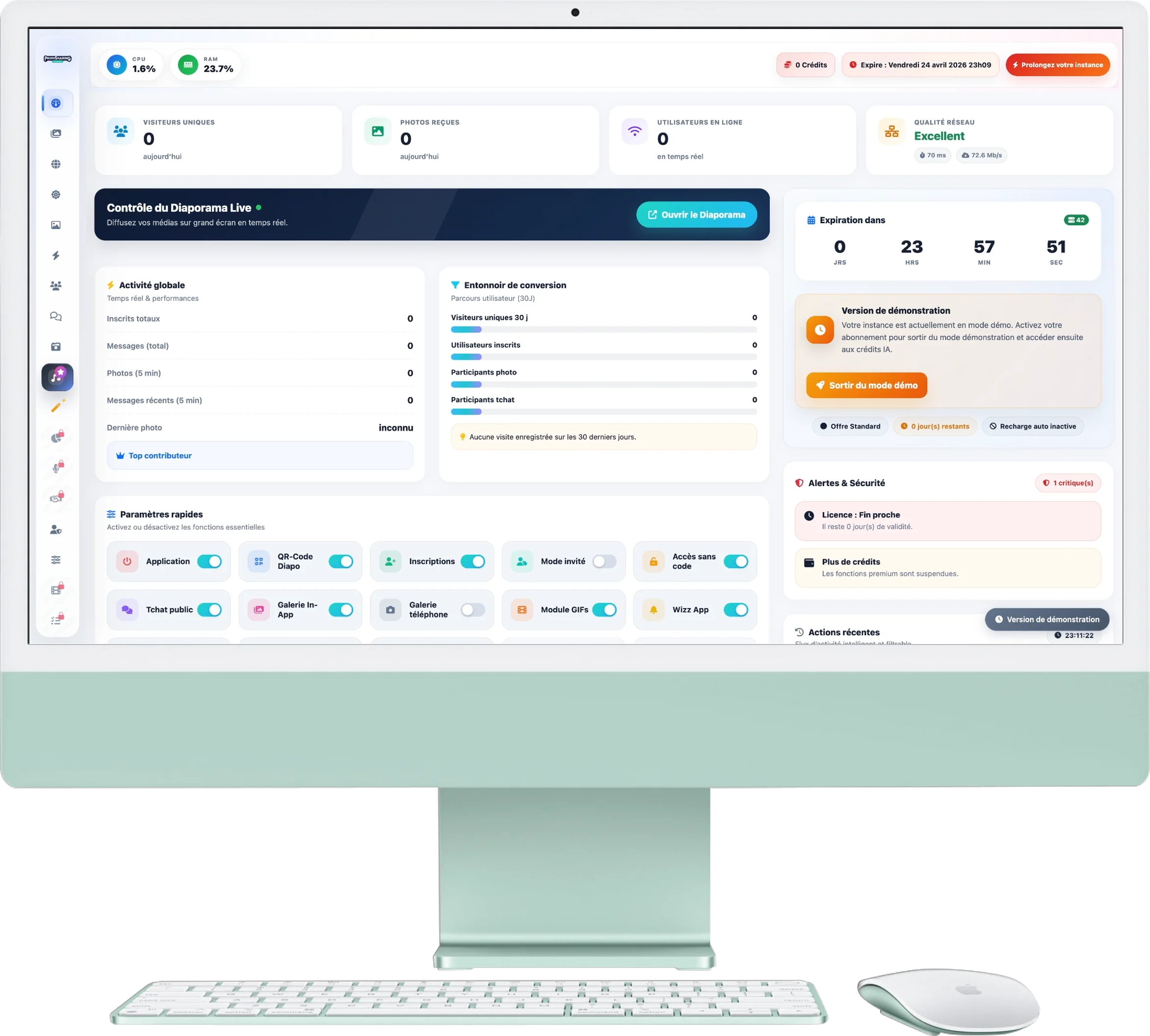
1. Key Indicators (Top)
These 4 blocks give you an immediate view of the overall participation of your event:
- Unique Visitors: The total number of people who flashed the QR Code or opened the application link.
- Photos Received: The total volume of images sent since the start of the event.
- Online users: The number of guests currently active on the app (in real time).
- Network Quality: Crucial for proper functioning! Indicates the status of your connection (Ping and Download Speed) to prevent any slowdown of the slideshow.
2. Live Slideshow Control
The large black box below the indicators is your launch button. By clicking on the blue button Open Slideshow, a new tab will open with the full screen display intended to be projected (via a video projector or TV screen).
3. Quick Settings
This is your mixing console. Activate or deactivate app features instantly without the need to reload the page. Here are the main switches:
- General : Active app (Opens or closes the global application), Registrations, Guest mode (Access without creating an account), Access without code.
- Interactions: Public chat (Activate/deactivate messaging), GIFs module.
- Slideshow display: QR-Code Slide (Shows or hides the QR Code on the screen), Slide Random.
- Premium (Pro) features: Moderation (Validate the photos manually before distribution), DJ Requests, AI Retouching.
4. My Account, Credits and History
The right column of your screen is dedicated to the administration of your offer:
- Your Credits: Shows your current credit balance. Credits are used to activate specific options (like Jukebox or AI editing) or to extend the life of your event.
- Expiration: A precise countdown indicates the end of validity of your instance. You can extend this duration directly via the integrated form.
- Alerts & Security: The system warns you here if it detects an anomaly (license soon to expire, connection lost, etc.).
- Recent Actions: At the very bottom right, follow the activity of your guests live (who sent a photo, a message, a DJ request, etc.) with the possibility of filtering by type.
5. Global Activity & Cockpit
These blocks centralise the health of your event at that moment. The intelligent cockpit calculates a score out of 100 to verify that everything is “Under control”. It displays very recent activity (Photos over the last 15 minutes, messages over 24 hours, etc.) to allow you to react if the animation runs out of steam.