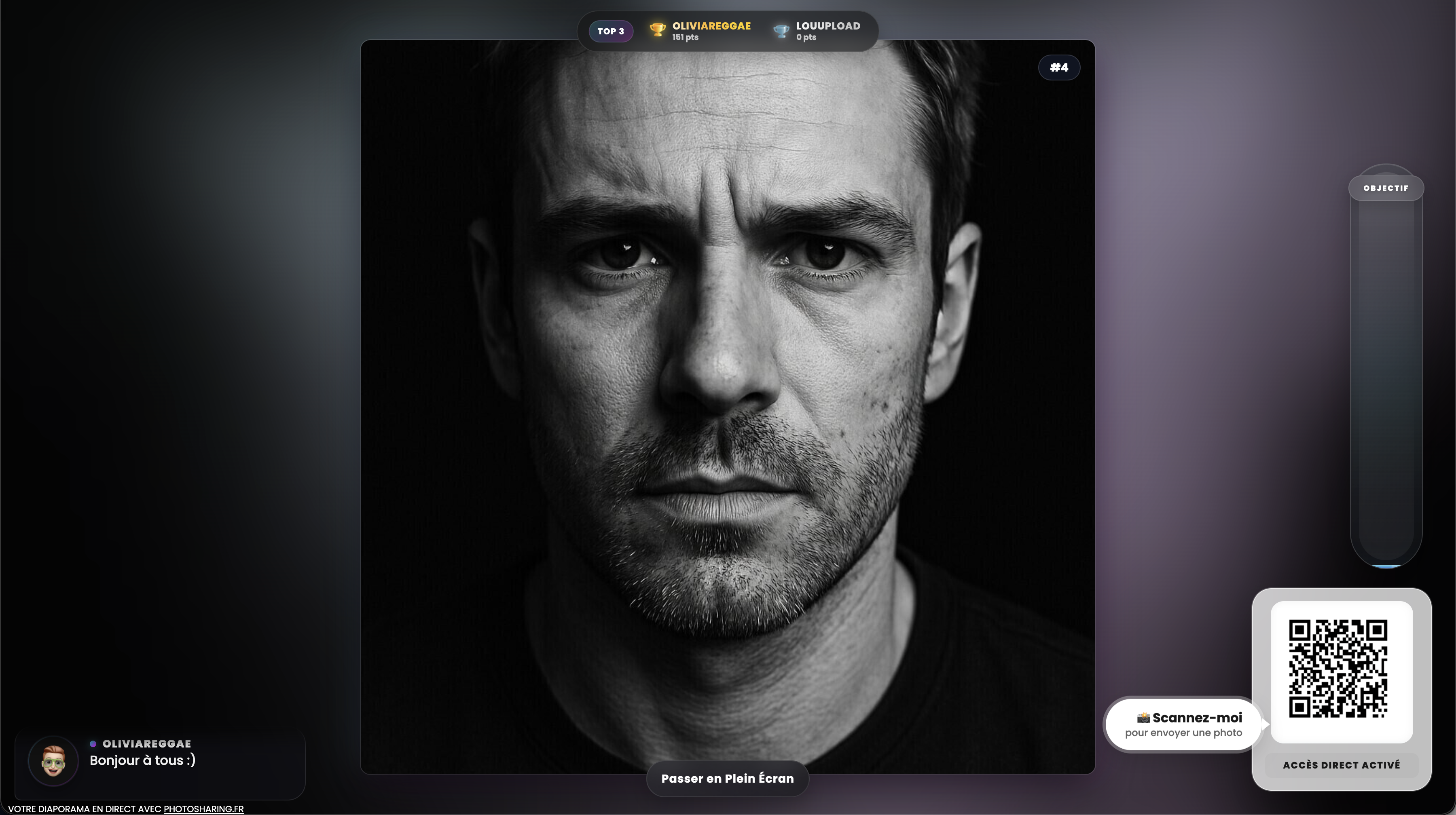
A live event photo screen can be more than a rotating gallery: the interface shown combines a large portrait with a QR code, message, goal and ranking. This guide compares the main criteria for apps like PhotoLiveShow and explains when PhotoSharing may suit your event.
Short answer: the right app depends on whether you only need guests to upload photos to a live slideshow or want the screen to become a broader interactive experience. Apps like PhotoLiveShow for events commonly focus on QR code access and immediate projection, while PhotoSharing can add messages, reactions, points, rankings, moderation and a lasting gallery.
Both approaches can work for weddings, birthdays, private parties and professional events. The useful comparison is not about declaring a universal winner. It is about guest simplicity, what appears on the screen, organizer control and what happens to the content after the event.
PhotoLiveShow in context: slideshow or interactive screen?
PhotoLiveShow publicly presents a simple journey: guests scan a QR code, share photos without downloading an app or creating an account, and see them appear on a large screen. Its published information also mentions slideshow themes and the ability to retrieve the event album. This may fit an organizer whose priority is a straightforward collaborative slideshow.
The hero interface above illustrates a wider interpretation of the same core use. A black-and-white portrait fills the central frame, while a QR code invites participation. A message, scores, a Top 3 area, a collective goal and a full-screen control turn the display into an active part of the experience. The image does not identify a particular venue or event; it demonstrates how an event screen can combine photos and participation.
Before comparing services, define the result you expect:
- A shared slideshow: collect guest photos and display them live.
- An interactive activity: combine media with chat, reactions, points or challenges.
- A controlled photo wall: review content before it reaches a public screen.
How to choose an app like PhotoLiveShow
Look beyond the upload button. A useful event platform must work for guests in seconds while giving the organizer enough control to run the screen confidently.
1. Check the guest journey
Guests should be able to scan a visible QR code or open a link from their phone. Confirm whether an application or account is required and whether access rules can be configured. PhotoSharing opens in the browser without an app download; depending on the organizer’s settings, guests can follow the enabled guest or account-based path.
2. Decide what the screen should do
A live slideshow may be sufficient if the objective is simply to display submitted photos. If the screen must encourage participation, look for messages, comments, reactions, points, rankings or collective goals. PhotoSharing can also accept videos and GIFs according to the enabled configuration, rather than limiting the experience to static images.
3. Review moderation and privacy
Content appearing on a large public screen needs appropriate safeguards. Check whether the organizer can validate, delete, rotate or block submissions before display. Also examine the gallery settings: PhotoSharing can provide a public or password-protected album, with visibility controlled by the organizer.
4. Plan for the memories after the event
A screen creates an immediate moment, but the collected media should remain useful afterwards. Ask whether individual images or a complete album can be downloaded. With PhotoSharing, the gallery, HD originals, online album and souvenir video can be recovered according to the selected plan and configuration.
5. Test the complete setup
Do not assess the mobile upload page in isolation. Test the QR code from several phones, send different media, open the slideshow in full-screen mode and review the organizer dashboard. A stable local connection also matters when many guests upload at once.
Practical tip
Run a rehearsal using the same TV, projector or large screen planned for the event. Place the QR code where it remains readable, submit a test portrait and a message, then check the moderation workflow and gallery. This reveals practical issues before guests arrive.
Set up a participative event screen in five steps
- Prepare the display. Connect a computer to a TV, projector or large screen and open the slideshow in a dedicated full-screen browser tab.
- Create the event space. Configure its identity, guest access and the modules that match the occasion rather than enabling every available interaction.
- Display the QR code. Add it to the main screen and, if useful, print the available poster so guests can scan it away from the display.
- Define content rules. Activate manual or intelligent moderation when the screen is public, and decide whether the final album will be public or protected.
- Test and launch. Upload photos from a phone, confirm that approved content reaches the slideshow, and verify how the media will be downloaded after the event.
PhotoSharing offers a free €0 demo without a payment method. An isolated test instance is generally prepared automatically in one to two minutes, giving you access to the QR code, dashboard, guest journey and slideshow before activation.
When PhotoSharing may be a suitable alternative
PhotoSharing may be worth trying when the live screen needs to do more than rotate guest photos. Three areas are especially relevant to organizers comparing interactive event platforms.
- A participative display: photos can appear alongside messages, chat, reactions, Wizz effects, points, a Top 3, rankings and photo challenges. These elements explain the interface visible in the hero image, where the QR code and portrait share the screen with a message, scores and an objective meter.
- Organizer control: the dashboard can activate or deactivate modules, monitor participation and manage submitted content. Manual or intelligent moderation can be used according to the formula and configuration, allowing the organizer to validate content before public display.
- A dedicated online album: the collected memories can continue beyond the live screen. The organizer determines whether the album is public or password-protected and can share it through a link or QR code. Individual files or the complete album can be downloaded where enabled.
A PhotoLiveShow-style approach may remain appropriate if your requirement is a focused QR code photo slideshow with minimal setup. PhotoSharing may fit better when you also want interaction, tighter moderation or a configurable post-event gallery. Testing the real guest and organizer journeys is more reliable than comparing feature names alone.
Match the PhotoSharing plan to your use
The stated 2026 options cover a one-off private event, recurring use and branded or moderated experiences. Full details are available on the PhotoSharing plans page.
- Private Event — €20, one-time payment: intended for a wedding or birthday. It includes live photos, videos and GIFs, a large-screen slideshow and QR code, interactions, chat and ranking, plus recovery of HD originals, an online album and a souvenir video.
- Standard — €19.80 per month: intended for an instance that stays active and can be reset between recurring events. It includes unlimited guest connections and uploads, the full dashboard and modules that can be activated as required.
- Pro — €39.60 per month: intended for visual identity, moderation and collaboration. It includes custom logo, background and copyright, manual moderation, reinforced registration, 30-day statistics with AI, collaborators and an extended album.
Some functions depend on the plan, available credits and configuration. For a specific public event or infrastructure requirement, contact PhotoSharing before deciding.
Frequently asked questions
Is PhotoSharing the same as PhotoLiveShow?
No. They overlap around QR code photo uploads and live event slideshows, but they are separate services. PhotoLiveShow publicly emphasizes straightforward real-time photo projection, while PhotoSharing also offers configurable interaction, organizer controls, moderation and galleries. The relevant option depends on your event.
Do PhotoSharing guests need to install an app?
No application download is required. Guests scan a QR code or open a link and participate through their mobile browser. The precise guest, code or account pathway depends on the access settings selected by the organizer.
Can photos be reviewed before appearing on screen?
Yes. PhotoSharing provides organizer controls for validating, deleting, rotating and moderating content before public display. Manual or intelligent moderation is available according to the plan and configuration.
Can the organizer retrieve the photos afterwards?
Yes. Received content can be managed through the gallery and downloaded, including through a ZIP export where enabled. HD originals, the complete album, online sharing and a souvenir video are available according to the selected formula and configuration. The PhotoSharing help center explains the workflow.
Try the experience before committing
The clearest way to evaluate an alternative is to use it as a guest and as an organizer. Create a free PhotoSharing demo for €0 without a payment method, scan its QR code, upload test media and open the interactive slideshow. You can then assess screen readability, participation, moderation and gallery recovery against the needs of your event—without treating any single platform as the automatic answer.
FAQ
Is PhotoSharing the same as PhotoLiveShow?
No. They are separate services that overlap around QR code uploads and live slideshows. PhotoLiveShow publicly emphasizes simple real-time photo projection, while PhotoSharing can also provide interactions, organizer controls, moderation and configurable galleries.
Do PhotoSharing guests need to install an app?
No application download is required. Guests scan a QR code or open a link and participate through their mobile browser. The exact guest, code or account journey depends on the organizer's access settings.
Can photos be reviewed before appearing on screen?
Yes. PhotoSharing lets organizers validate, delete, rotate and moderate submitted content before public display. Manual or intelligent moderation is available according to the plan and configuration.
Can the organizer retrieve the photos afterwards?
Yes. Content can be managed in the gallery and downloaded, including through ZIP export where enabled. HD originals, the complete online album and a souvenir video are available according to the selected formula and configuration.
Create an event
Un QR Code, des invités qui participent, et un diaporama qui donne vie à votre événement en direct.